Noticed a white spot on your Android screen? It can be frustrating, but don’t worry—it’s not always a sign of something serious. Whether it’s a temporary software glitch or a sign of a deeper hardware issue, understanding the cause of the white dot can help you figure out how to fix it. In this guide, we’ll explore common causes and easy solutions to get your Android screen looking as good as new.
What Is a White Spot on Your Android Screen?
A white spot on your Android screen can appear out of nowhere and may be pretty alarming, but it’s usually nothing to panic about. This issue can occur due to a variety of factors, ranging from minor software glitches to more serious hardware problems. Common causes include notifications, settings in Developer Options, stuck pixels, pressure on the screen, or even issues with your phone’s hardware. Let’s take a closer look at each potential cause and how you can address it.
Common Causes of a White Spot on Your Android Screen
White dots on your Android screen are more common than you might think, and many different things could cause them. Below, we break down the most common reasons for these annoying spots, so you can easily identify and fix the issue.
1. Notification Indicator (Top Bar)
If you see a small white dot on the top of your screen, it’s probably due to the notification indicator. Android devices show this white dot when you have unread notifications or alerts that don’t fit in the notification bar.
Solution: Simply swipe down from the top of your screen to view the notifications. Managing or clearing the notifications will prevent this white dot from showing up in the future.
2. Developer Option (Show Taps)
The "Show Taps" feature in Developer Options could be the culprit if the white dot follows your finger across the screen. This feature is designed to help developers by showing where they tap on the screen, but it can easily be turned on by accident.
Solution: To turn it off, go to Settings > System > Developer Options and disable the “Show Taps” or “Pointer Location” option. This will remove the white dot that trails your touch.
3. Stuck or Dead Pixel
If the white spot is stuck in the same spot and doesn’t move, it’s likely caused by a stuck or dead pixel. Stuck pixels tend to stay fixed on one color (like white), while dead pixels are completely black. These issues can happen due to physical damage or normal wear and tear over time.
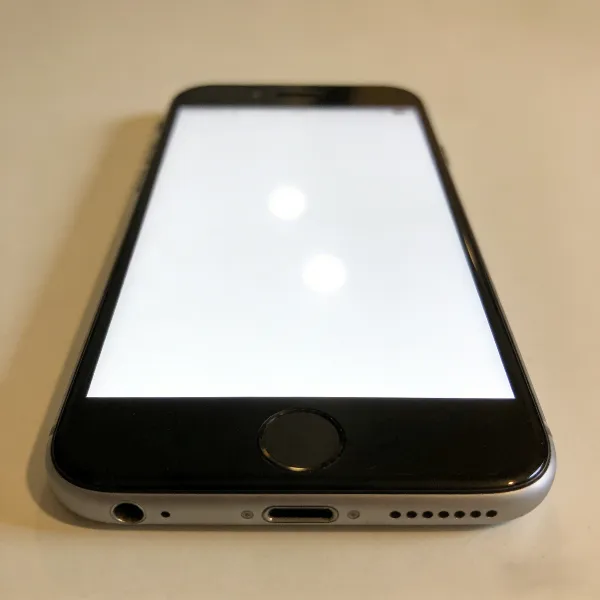
Solution: Display a pure white or black background to test for stuck or dead pixels. If you notice the dot staying in place, it could be a stuck pixel. Try using a pixel-fixing app to unstick the pixel. However, if the pixel is dead, you might need to contact the manufacturer for a replacement.
4. Pressure or Hardware Issues
Another cause of a white dot on your Android screen could be pressure on the screen. This can happen if your phone case is too tight, or if you accidentally press on the screen. Pressure can sometimes cause bright spots or even damage the internal components, leading to persistent white spots.
Solution: Inspect your phone for physical damage, cracks, or pressure points. If your phone case is too tight or causing pressure, consider switching to a looser case. If the white dot doesn’t disappear after making these adjustments, the issue may be hardware-related, and it might be time to contact the manufacturer or visit a repair center.
5. Carrier-Specific Apps
Sometimes, carrier-specific apps can cause strange glitches, like a white dot on your screen. These apps can introduce additional features that you may not need or that may conflict with other apps or settings.
Solution: Disable any carrier-specific apps to see if that fixes the issue. You can go to Settings > Apps > [Carrier App] and disable it to see if the white dot disappears.
How to Fix the White Spot on Your Android Screen
Now that we’ve covered the potential causes, let’s dive into how you can fix the white spot on your Android screen. These solutions are simple and can often be done in a few steps.
1. Check Your Notifications
If the white dot is simply a notification indicator, the solution is straightforward. Swipe down from the top of your screen to view your unread notifications. Once you clear or manage the notifications, the white dot should disappear.
2. Disable Developer Options
If the white dot is following your finger around, it’s likely due to the “Show Taps” feature in Developer Options. To fix this, go to Settings > System > Developer Options and turn off “Show Taps” or “Pointer Location.” This will stop the white dot from following your touch.
3. Test for Stuck or Dead Pixels
To check for stuck or dead pixels, display a pure white or black background on your screen. If the white spot doesn’t disappear, it’s likely a stuck or dead pixel. Try using a pixel-fixing app, which can sometimes unstick stuck pixels. However, if the pixel remains black or white, you may need to contact the manufacturer for a replacement.
4. Restart Your Phone
Sometimes, a simple restart is all it takes to fix a white dot on your screen. If it’s a temporary software glitch, rebooting your phone should solve the issue and get rid of the dot.
5. Check for Hardware Problems
If none of the above solutions work, the white spot might be due to physical damage or internal hardware issues. Check for any cracks, pressure points, or visible defects on your screen. If you can’t find anything, but the dot is still there, it may be time to contact the manufacturer or your carrier for help.
6. Disable Carrier-Specific Apps
If you suspect that a carrier-specific app is causing the white dot, disable it through your phone’s settings. Go to Settings > Apps > [Carrier App] and turn it off. This may resolve the issue if the white dot is related to a system app.
What to Do if the White Spot Won’t Go Away
If none of the above solutions work and the white spot is still on your screen, it may be time to seek professional help.
1. Contact Support
If you’ve tried all the steps and the white dot remains, it’s likely a stuck or dead pixel or an underlying hardware issue. In this case, contact your phone’s manufacturer or your carrier’s customer support team. They can offer repair or replacement options, especially if the device is still under warranty.
2. Consider Professional Repairs
If your phone is out of warranty or the issue is related to physical damage, you might need to get professional repairs. A damaged screen or internal components could be the cause, and a certified technician can help fix the issue or replace the screen.
Conclusion
A white spot on your Android screen can be caused by a variety of issues, from a simple notification indicator to a more serious hardware problem. By identifying the root cause of the white dot, you can apply the right solution, whether it’s managing your notifications, adjusting your settings, or seeking professional help. With these steps, you can get your Android screen back to normal in no time.