A white spot on your laptop screen is more than just an eyesore—it can disrupt your workflow and cause frustration. Whether it's a tiny blemish or a large patch, this issue can leave you wondering how to fix it. In this guide, we’ll break down the possible causes behind white spots, simple DIY fixes, and when it’s time to get professional help. Let’s dive in and find the best solution for your laptop.
What Is a White Spot on a Laptop Screen?
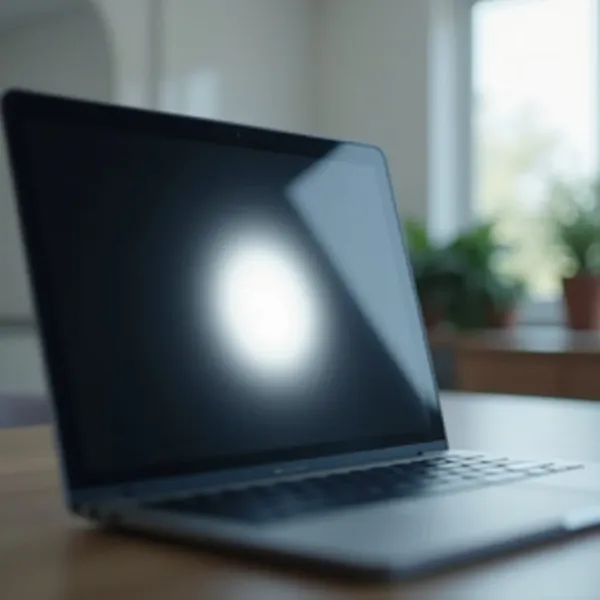
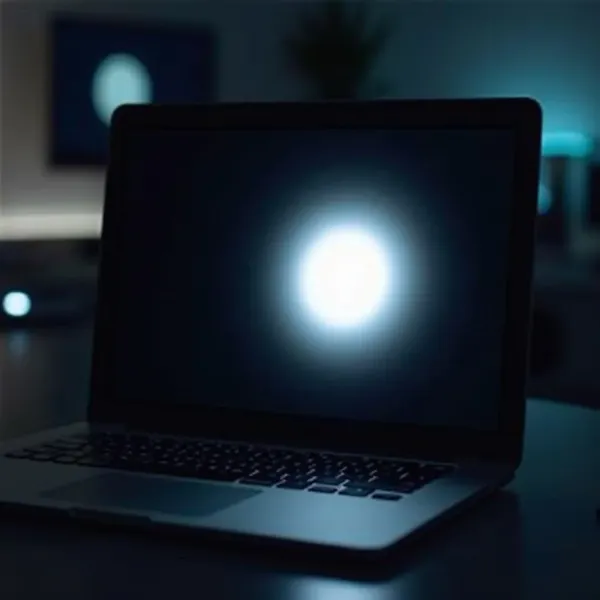
A white spot on your laptop screen is a brighter area that stands out from the rest of your display. It can range from a tiny speck to a larger, more noticeable patch. These spots are typically caused by either a physical issue with the screen or a malfunction in the pixels. While some may be easy to fix, others might require more in-depth repairs. The good news is, many cases are solvable with a little effort.
Common Causes of White Spots on Laptop Screens
White spots on laptop screens don’t happen without a reason. Knowing what’s causing the problem is the first step in figuring out how to fix it. Let’s explore the most common causes.
External Pressure or Impact
One of the most frequent culprits of white spots on laptop screens is external pressure or impact. If your laptop screen has been pressed too hard or dropped, it can lead to physical damage in the form of white patches. These spots appear where the pressure affected the display’s liquid crystals. The result is usually permanent damage, especially if the pressure caused internal screen issues. If your laptop hasn’t been dropped or pressed, consider less obvious causes like internal debris—or even insect inside computer screen.
Dust or Debris Between Screen Layers
Sometimes, white spots can be caused by dust or debris trapped between the screen layers. Small particles can accumulate over time and create uneven lighting, which might show up as white spots on your display. If this is the case, you might be able to fix it by cleaning the screen. However, if the debris is deep inside, professional help may be necessary to remove it.
Stuck or Dead Pixels
A stuck or dead pixel can also cause white spots on your laptop screen. Stuck pixels display a constant color, while dead pixels don’t display anything at all. Both can create white patches on your display. In some cases, stuck pixels may be fixed with pixel-fixing software, but dead pixels often require a screen replacement to resolve the issue.
Liquid Damage and Its Consequences
Spilling liquid on your laptop is another common cause of white spots. If liquid seeps into the screen’s internal layers, it can disrupt the display, causing areas to become brighter or distorted. Liquid damage can be permanent if not addressed immediately, but in some cases, the spots might clear up if the laptop is dried out quickly.
How to Fix a White Spot on Your Laptop Screen
Now that you understand the causes of white spots, let’s talk about how to fix them. Here are some simple steps you can try to restore your laptop’s display to normal.
Step 1: Clean the Screen Properly
Before assuming your laptop screen is broken, make sure it’s clean. Sometimes, dirt, dust, or smudges can look like white spots. Use a microfiber cloth to gently wipe your screen, paying attention to the corners and edges where dust can accumulate. Cleaning the screen regularly can help prevent this issue from happening in the future.
Step 2: Try Applying Gentle Pressure
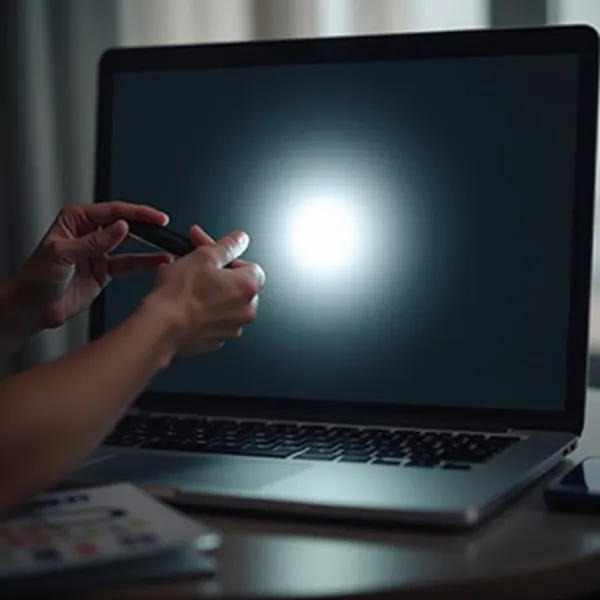
If the white spot looks like it’s due to a stuck pixel or minor damage, try gently pressing the area with a soft cloth or your finger. Apply very light pressure while the screen is turned on. This method works because it can help realign the liquid crystals and possibly fix the spot. Be cautious, though—too much pressure can make the problem worse.
Step 3: Use Pixel-Fixing Software
Dead or stuck pixels can often be fixed with pixel-fixing software. These tools rapidly cycle through colors on the screen to help stimulate the affected pixels. While this isn’t guaranteed to work, it’s worth a shot. There are several free and low-cost options available online. If the white spot is due to a stuck pixel, this software might just do the trick.
Step 4: Update or Roll Back Your Graphics Drivers
Sometimes, the issue could be related to your graphics driver. Outdated or corrupted drivers can cause display problems, including white spots. Check to see if your graphics drivers are up to date by visiting your laptop’s manufacturer website or using the device manager in Windows. If the issue appeared after an update, try rolling back the driver to a previous version to see if that resolves the problem.
Step 5: Reduce Screen Brightness
If the white spot is not caused by physical damage or software issues, reducing the screen’s brightness might help. Lowering the brightness can make the white spot less noticeable. While this solution won’t fix the root cause, it can give you temporary relief while you look for a more permanent solution.
When to Seek Professional Help
If none of the above solutions work, or if you suspect the problem is beyond a simple fix, it may be time to consult a professional. Here are some signs that you should seek expert help.
Signs of Permanent Damage
If the white spot remains despite your best efforts to fix it, the damage may be permanent. This is especially likely if the issue is caused by liquid damage or a dead pixel. If this happens, you’ll probably need to replace the screen or get a professional repair.
Why Professional Repair Might Be Necessary
If you’re not comfortable trying to fix the problem yourself or if the issue is beyond your expertise, a repair technician can diagnose the problem and offer solutions. If your laptop is under warranty, professional repair might be covered, saving you money on the repair.
Brand-Specific Tips
If you have a specific laptop brand, you might find there are unique solutions or tools available to help fix a white spot on your screen. Here’s what you should know about common brands like Lenovo, Dell, and HP.
Fixing White Spots on Lenovo Laptop Screens
If you notice a white spot on your Lenovo laptop screen, start by checking for any software issues. Lenovo laptops come with built-in diagnostic tools that can help identify screen problems, including dead pixels. If the issue is due to a manufacturing defect, Lenovo’s warranty may cover a free repair or replacement.
Fixing White Spots on Dell Laptop Screens
Dell laptops also offer diagnostic tools for troubleshooting display issues. If you have a white spot, use Dell’s built-in pixel test to check if a pixel is stuck or dead. If this doesn’t work, and the laptop is still under warranty, Dell can replace the screen for you.
Fixing White Spots on HP Laptop Screens
For HP laptop users, check if the issue is related to software by running diagnostic tests. HP also provides pixel-fixing software that may help with stuck pixels. If these solutions don’t work, you might need to visit an HP service center for further assistance or consider a screen replacement.
Conclusion
A white spot on your laptop screen can be a frustrating problem, but it’s often fixable. Start by cleaning the screen and applying gentle pressure. If that doesn’t work, try using pixel-fixing software or updating your graphics drivers. If the white spot persists, it may be time to seek professional help. Whether you have a Lenovo, Dell, or HP laptop, there are solutions available to help you get your screen back to normal.
To keep your screen in good condition, clean it regularly and handle your laptop with care. Avoid placing heavy objects on the screen, and be cautious around liquids. A protective case or screen guard can also help prevent future damage.