If you’ve ever wondered, "Where is clipboard on Android?" you’re not alone. This handy feature allows you to copy and paste text, links, and other content between apps. But finding and using the clipboard can sometimes be tricky, especially if you're not familiar with where it’s located or how it works. In this guide, we'll show you exactly how to access clipboard on Android, manage your clipboard items, and make the most of it with a few helpful tips.
What Is the Clipboard on Android?
The clipboard on Android is a temporary storage area that holds text, images, links, and other content you've copied or cut. When you copy something, whether it’s a phone number, a web address, or a block of text, it gets stored on the clipboard, ready to be pasted into another app. The clipboard helps save you time and effort when transferring data across apps or documents.
If you’re wondering how to use clipboard on Android, the good news is that once you know where to find it, it’s easy to use and incredibly helpful. However, it’s important to know that not all Android phones show the clipboard by default, so it might take a bit of digging to find it.
How to Access Clipboard on Android
Accessing the clipboard on Android is fairly simple, but the exact steps may vary depending on your device model and Android version. Here's the general process:
- Open a Text Input AreaFirst, open any app where you can type text—whether it’s a messaging app, an email, or even a search bar.
- Tap on the Text FieldWhen you tap on the text field, your keyboard will appear on the screen.
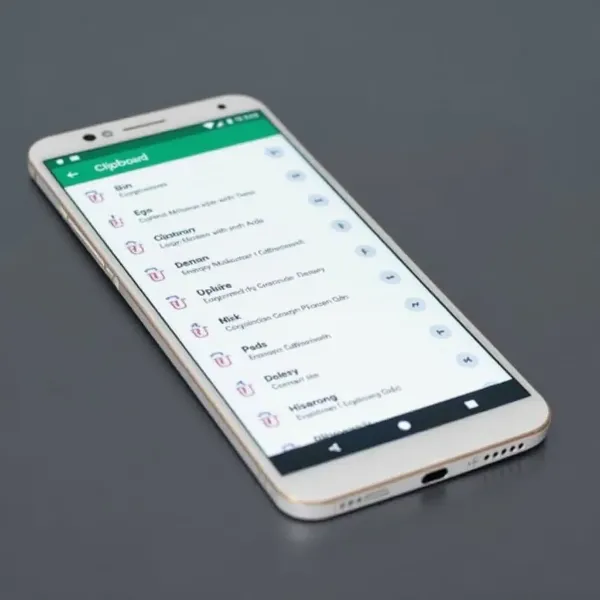
- Find the Clipboard IconOn many Android keyboards, including Google’s Gboard, you’ll see a small clipboard icon either at the top or bottom of the keyboard. Tap it to open your clipboard history.
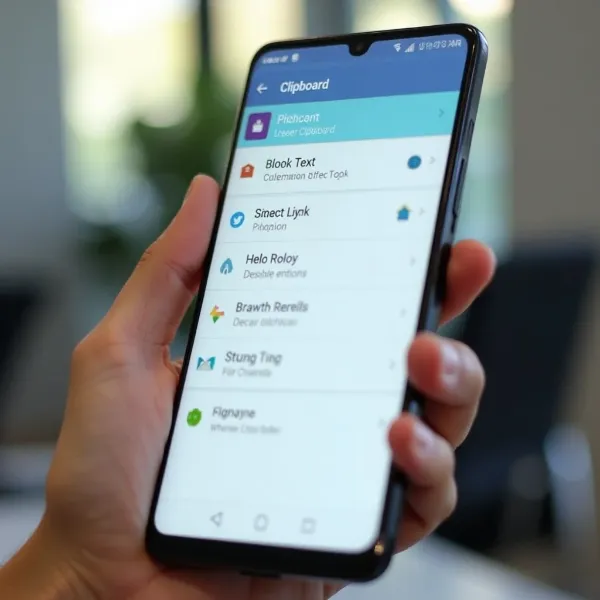
- View Your Clipboard ItemsAfter tapping the clipboard icon, you’ll see a list of items you’ve copied recently. You can tap on any of them to paste it directly into your text field.
Step-by-Step Guide to Find the Clipboard
If you need a quick refresher on how to access clipboard on Android, here’s the process broken down:
- Open any app with a text input field.
- Tap the text field to bring up the keyboard.
- Look for the clipboard icon (usually at the top or bottom).
- Tap it to open your clipboard and select an item to paste.
Now that you know how to access clipboard on Android, you’re ready to start managing it more effectively.
Managing Clipboard Items on Android
Once you've accessed the clipboard on Android, you can easily manage the items stored there. Whether you're pasting, pinning, or deleting clipboard content, these features will help you stay organized.
How to Paste from Clipboard
Once you open the clipboard, pasting content is as simple as tapping on the item you want. For example, if you’ve copied a phone number or an address, simply tap on that item to paste it wherever your cursor is. This makes it much faster than typing out the information again.
How to Pin Items on the Clipboard
Many Android devices, especially with Gboard, allow you to pin important clipboard items so they stay in your clipboard history until you decide to remove them. Here’s how you can pin an item:
- Open the clipboard history through your keyboard.
- Find the item you want to pin.
- Tap the pin icon next to it.
Pinned items will remain in your clipboard until you unpin or delete them. This is great for when you’re copying something you need access to often.
How to Delete Items from the Clipboard
Cleaning out your clipboard is just as easy as managing the other functions. To delete an item from your clipboard:
- Open the clipboard history.
- Find the item you want to delete.
- Tap the trash can icon or swipe the item away.
Deleting unnecessary items keeps your clipboard organized and frees up space for more important data.
Additional Features and Tips for Using Clipboard on Android
Clipboard functionality on Android isn’t just limited to copying and pasting. There are additional features and options that make it even more useful. Let’s dive into some of the ways you can improve your clipboard experience.
Using Clipboard on Different Keyboards (e.g., Gboard, Samsung Keyboard)
The clipboard feature is available on most Android keyboards, but how you access it might differ depending on which one you’re using. For example:
- Gboard: This popular keyboard from Google has a built-in clipboard manager. You can view, pin, and delete clipboard items directly from Gboard. To access it, tap the clipboard icon on your keyboard, and you’ll see your copied items.
- Samsung Keyboard: Samsung’s default keyboard also includes clipboard support, but you may need to enable clipboard history in your phone's settings. Once enabled, you can open the clipboard manager directly from the keyboard.
Other third-party keyboards, such as SwiftKey, also offer clipboard functionality, but the exact process may differ. If you're using a third-party keyboard, check its settings to find clipboard options.
How to Enable Clipboard History Feature
Not all Android devices have the clipboard history feature turned on by default. But don’t worry—it’s easy to enable. Here’s how:
- Open the Settings app.
- Go to System or Language & Input (it may vary based on your device).
- Find Clipboard or Clipboard History in the list.
- Turn on Clipboard History.
Enabling clipboard history ensures that your Android device saves multiple items you’ve copied, making it easy to access them later. If you copy a lot of content, this feature can be a real time-saver.
Conclusion
So, now you know where is clipboard on Android, how to access it, and how to manage your clipboard items. With just a few taps, you can easily copy and paste text, images, and links across different apps, making your life easier. If you want to maximize your clipboard experience, don’t forget to enable clipboard history and use the pinning feature to keep your most important items readily available.
And in case you accidentally lost important data, you can learn how to recover deleted SMS in Android to help you retrieve crucial information.