Dealing with the Lenovo laptop screen flickering horizontal lines can be frustrating. While this issue can stem from various sources, don't worry—it’s often fixable! Whether the cause is related to software or hardware, we’ll guide you through easy-to-follow solutions that can get your screen back to normal. Here’s everything you need to know to fix Lenovo laptop screen flickering with horizontal lines.
How Does Screen Flickering Affect Computer Performance?
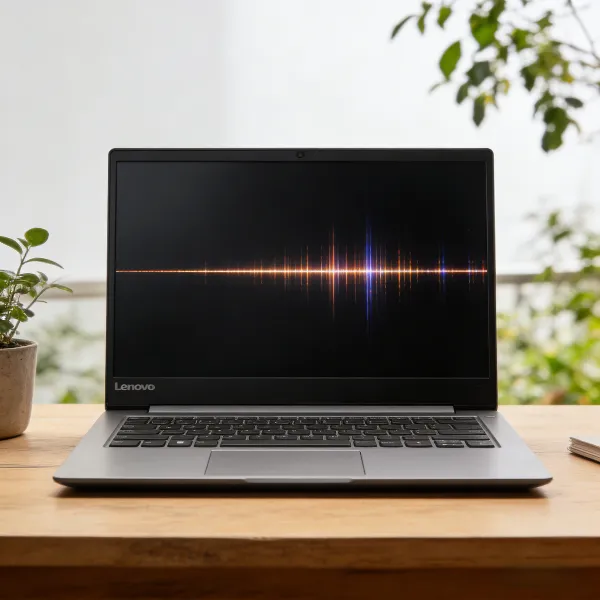
Screen flickering can influence both system performance and user efficiency. When the graphics card repeatedly redraws frames to compensate for signal instability, it may increase GPU load and slightly reduce overall performance. On lower-end systems, this added strain can lead to lag, frame drops, or overheating.
Beyond hardware impact, flickering also reduces visual clarity, making it harder to focus on tasks. Over time, this can slow productivity and increase eye strain, even if the computer’s core processing power remains unchanged.
6 Common Reasons for Horizontal Lines on a Lenovo Laptop Screen
If you’re noticing Lenovo laptop screen horizontal lines flashing or staying fixed across the display, the issue usually points to either a hardware fault or a system-related glitch. Identifying the source early can help prevent further screen damage.
Loose or Damaged Display Cable: The internal video cable connecting the motherboard to the screen may become loose due to drops, frequent lid movement, or aging components.
Faulty LCD Panel: A damaged or deteriorating screen panel can produce persistent horizontal lines, especially if the laptop has suffered impact.
Outdated or Corrupted Graphics Driver: Graphics driver issues may cause display irregularities, including flickering or static lines across the screen.
Graphics Card (GPU) Malfunction: An overheating or failing GPU can create visual distortions, including horizontal streaks.
Incorrect Screen Resolution or Refresh Rate: Mismatched display settings sometimes result in flickering or abnormal lines.
Operating System Glitches: Recent updates, system errors, or software conflicts may temporarily affect screen rendering.
3 Software Fixes for Horizontal Lines on Laptop Screen
If the issue is software-related, there are 3 simple steps you can take to fix the flickering and horizontal lines. These solutions don’t require opening up your laptop and can usually resolve the problem quickly.
1. Performing a Hard Restart to Fix Flickering
Sometimes, a simple restart can clear up software glitches causing the screen to flicker. Here’s how you can perform a hard restart to fix the problem:
- Shut Down the Laptop: Press and hold the power button until the laptop shuts down completely.
- Disconnect External Devices: Unplug any USB devices, external monitors, or printers that might be connected.
- Turn the Laptop Back On: Press the power button again to restart your laptop.
This can help reset the system and clear up minor software-related flickering issues.
2. Updating and Reinstalling Graphics Drivers
One of the most common causes of Lenovo laptop screen flickering with horizontal lines is outdated or corrupted graphics drivers. Updating or reinstalling these drivers can often solve the issue.
Here’s how to update or reinstall your drivers:
- Go to Lenovo Support: Visit the Lenovo Support website.
- Search for Your Laptop Model: Enter your laptop’s model number in the search bar.
- Download the Latest Graphics Drivers: Look for the latest graphics drivers in the "Drivers & Software" section.
- Install the Drivers: Follow the on-screen instructions to install the drivers.
If the issue persists, you can try reinstalling the drivers in Safe Mode to prevent conflicts with other software.
3. Adjusting the Display Refresh Rate
Another easy fix is adjusting your laptop’s display refresh rate. Sometimes, the refresh rate can be incompatible with your screen, leading to flickering or lines.
Here’s how to adjust it:
- Open Display Settings: Right-click on the desktop and select Display settings.
- Go to Advanced Display Settings: Scroll down and click on Advanced display settings.
Change Refresh Rate: Under "Refresh rate," select a different rate, typically 60Hz or 75Hz. If the flickering stops, you’ve found the right refresh rate for your screen.
3 Hardware Fixes for Horizontal Lines on Laptop Screen
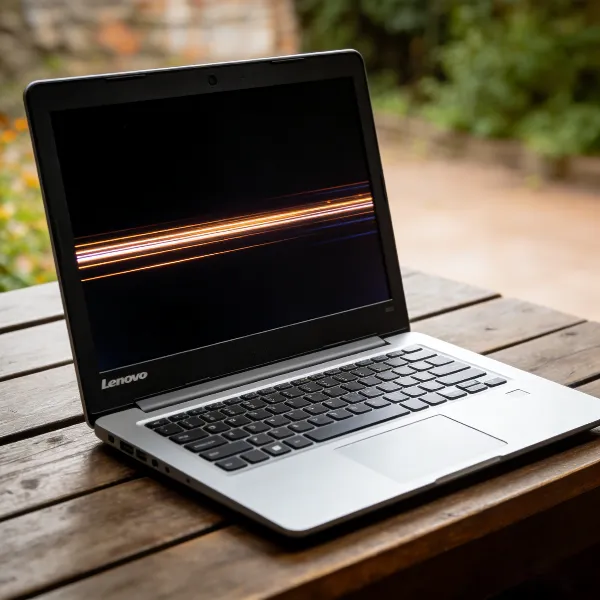
If the software solutions didn’t work, the issue may be more serious and hardware-related. Here’s how you can troubleshoot hardware problems that might be causing horizontal lines on your Lenovo laptop screen.
1. Testing the Display Using an External Monitor
Using an external monitor is a great way to check whether the problem is with the laptop’s screen or with the internal components.
Here’s how to test it:
- Connect an External Monitor: Plug in an external monitor using the appropriate cable (HDMI, VGA, etc.).
- Check for Flickering: If the external monitor works fine without flickering or horizontal lines, the problem likely lies with the laptop’s screen or its connections.
- Test Your Laptop’s Screen: If the external monitor doesn’t show any issues, but your laptop screen still flickers, the problem could be internal—like a display cable or GPU issue.
2. Checking the Internal Display Cable
A loose or damaged internal display cable is another common cause of flickering and horizontal lines. If you’re comfortable opening your laptop, you can check the cable.
Here’s what to do:
- Power Off the Laptop: Shut down your laptop completely and unplug it from any power source.
- Remove the Back Panel: Use a screwdriver to remove the screws on the back panel.
- Check the Display Cable: Look for the cable connecting the screen to the motherboard. If it’s loose or damaged, you may need to reattach or replace it.
If you’re unsure about doing this yourself, it’s best to consult a professional.
3. Diagnosing a Faulty LCD Panel
A faulty LCD panel can also cause persistent horizontal lines on the screen. If the lines don’t go away even after trying software and cable fixes, the issue may lie in the screen itself.
Here’s how to tell if the problem is with the LCD panel:
- Inspect the Screen: Look closely at the screen for any cracks, dark spots, or areas where the lines appear more prominently.
- Consider Replacement: If the screen appears damaged or the lines are caused by a malfunctioning LCD, it may need to be replaced.
Replacing an LCD is not a simple DIY fix, and it’s best to seek professional repair if needed.
If you run into laptop screen flickering horizontal lines in the future, you can follow this guide to inspect and repair the issue. In addition to horizontal lines, another common problem is a black line on the computer screen. You can find practical solutions for that issue in that link.
When to Seek Professional Help for Lenovo Laptop Screen Flickering
If the flickering and horizontal lines persist after trying the above solutions, it’s time to seek professional help. Here’s when you should consider contacting Lenovo support or a technician:
- Under Warranty: If your Lenovo laptop is still under warranty, contact Lenovo support for assistance. They may offer to replace or repair your laptop for free.
Hardware Failures: If the issue appears to be hardware-related, like a faulty screen or GPU, it’s best to have a technician take a look. Hardware repairs typically require specialized tools and expertise.
Conclusion
Lenovo laptop screen flickering horizontal lines can result from driver errors, incorrect display settings, loose internal cables, or a failing LCD panel. Start with simple software checks such as restarting, updating graphics drivers, and adjusting the refresh rate. If the issue remains, test with an external monitor and inspect internal connections. Early troubleshooting helps prevent further damage and unnecessary repair costs.