Turning off your Android phone may seem like a simple task, but depending on the device, it can vary slightly. Whether you need to power down your phone to save battery, troubleshoot an issue, or take a break, knowing the different ways to turn off your Android phone can be really useful.
So, how do I turn off my Android phone? This guide will walk you through the most common methods of how to turn off Android phone, including solutions for when your power button isn’t working properly.
Common Ways to Turn Off Android Devices
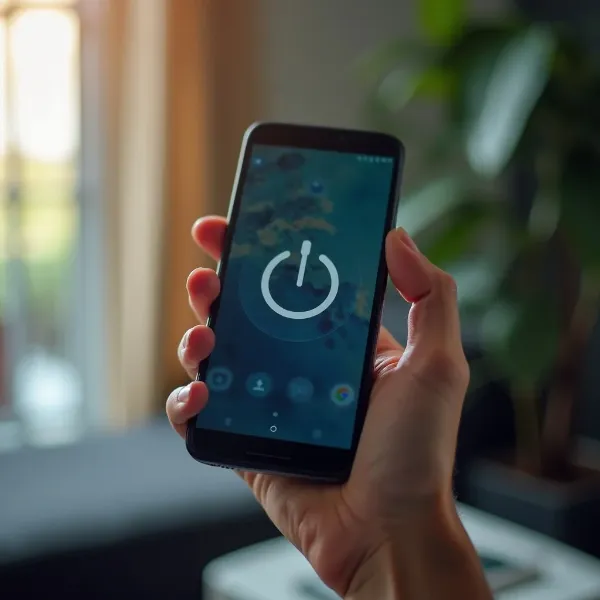
There are several ways to shut down Android phones, and knowing them can help you when one method doesn’t work. Whether you’re using the power button or relying on the Quick Settings panel, here’s a breakdown of the most common options.
Use the Power Button for Shutdown or Forced Shutdown
For most Android phones, turning off your device using the power button is the easiest method. Here’s how:
- Locate the Power Button: Usually found on the side or back of your device.
- Press and Hold: Hold the power button for a few seconds.
- Select Power Off: A menu will appear on your screen—tap “Power Off” to turn your phone off.
This method works in most cases. If your phone becomes unresponsive, however, try holding the power button for about 10 seconds to force a shutdown.
Power + Volume Up Button
If your phone has a unique button layout, you might need to use a combination of buttons to turn it off. Here's how to use the Power and Volume Up button combination:
- Press Both Buttons: Hold the power button and the volume up button at the same time.
- Wait for the Menu: After a few seconds, the power options menu will appear.
- Select Power Off: Choose the “Power Off” option to shut down your phone.
This method is often used for devices with edge-to-edge screens, where the physical buttons are more integrated into the frame.
Quick Settings Panel: The Easiest Method
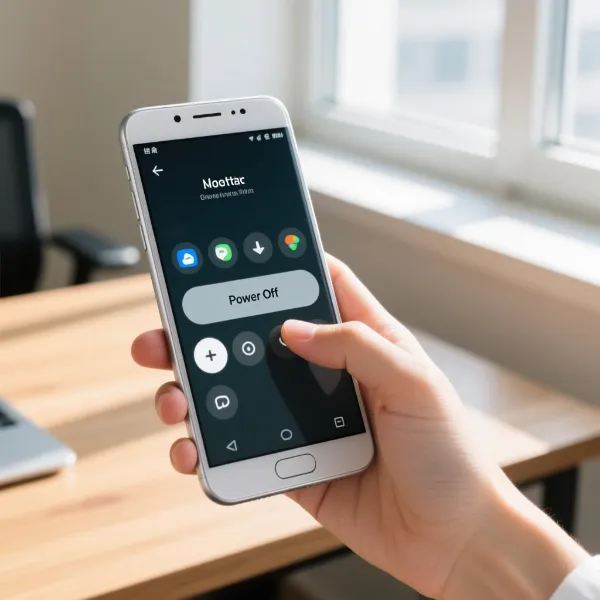
On newer Android phones, you can quickly turn off your device via the Quick Settings panel. This method is easy and doesn’t require any button pressing:
- Swipe Down: Pull down the notification bar to open the Quick Settings menu.
- Find the Power Icon: Look for the power icon in the options.
- Tap and Hold: Tap and hold the power icon.
- Select Power Off: The power-off menu will appear, allowing you to select “Power Off.”
This is one of the quickest ways to turn off your phone when you don’t want to rely on physical buttons.
Power + Volume Down Button to Force a Shutdown
If your phone is frozen and won’t respond to normal methods, you can force a shutdown by using the Power + Volume Down button combination:
- Press Both Buttons: Press and hold both the power button and the volume down button at the same time.
- Wait for 10 Seconds: Keep holding until the screen turns off.
- Shutdown Complete: The phone will either restart or completely shut down.
This is a great solution when your phone becomes unresponsive.
Use the Software Settings (When the Power Button is Broken)
If your power button is broken or not responding, you can still turn off your phone using software settings:
- Go to Settings: Open the “Settings” app.
- Find Accessibility: Navigate to the Accessibility section.
- Activate Virtual Power Button: Look for a virtual power button option and enable it.
- Turn Off the Phone: Use this on-screen button to turn off the phone.
This method is ideal when you can’t use the physical power button for any reason.
Troubleshooting Android Power-Off Issues
Sometimes, turning off your Android phone doesn’t go as planned. Whether it’s due to a software issue or a stuck button, here are some common problems and their solutions:
- Power Button Activates Google Assistant Instead of Turning Off the Phone
If pressing the power button opens Google Assistant instead of powering off your phone, it’s likely due to an accessibility or button configuration issue. To fix this: - Go to Settings > Accessibility.
- Check the Power Button settings and turn off Google Assistant if it’s been set as a long-press function.
- You can also check the Gestures settings and adjust how the power button behaves.
- Phone Won’t Turn Off
If your phone won’t power off, it might be due to a software glitch or app malfunction. Here's how to fix it: - Try force restarting your device by holding the power and volume down buttons for 10 seconds.
- If that doesn’t work, boot your phone into Safe Mode (press and hold the power button, then select “Safe Mode”). Once in Safe Mode, uninstall any problematic apps.
- Unresponsive Screen When Trying to Turn Off
If your phone’s screen becomes unresponsive, try this: - Perform a forced restart by holding down the power and volume down buttons simultaneously for 10-15 seconds.
- If this doesn’t help, charge your phone for a while and try again—sometimes a low battery can prevent a shutdown.
- Delayed Shutdown
If your phone takes too long to shut down, background apps might be interfering. Here’s what you can do: - Close open apps by accessing the recent apps menu and swiping them away.
- Try using the Quick Settings method to turn off your phone, as it might be faster than the standard method.
Conclusion
Knowing how to turn off your Android phone is an essential skill for every user. Whether you're using the power button, volume buttons, or the Quick Settings panel, there’s a method for every situation. If your phone is unresponsive, there are simple solutions like force restarting or using virtual buttons to help you out. Troubleshooting these common issues will ensure that your phone stays responsive and ready for whatever you need.
For more Android hacks, check out our guide on factory reset Android phone too!