Losing photos on your Android device can be frustrating, especially when they capture special memories. Whether it’s a mistake, a software issue, or an accidental tap, you can still recover your deleted photos in most cases.
This guide walks you through simple, effective methods of how to recover deleted photos from Android.

Why Your Photos May Get Deleted
There are many reasons why your photos might disappear from your Android device. Accidental deletion is the most common cause—sometimes a simple tap can send your memories to the trash. Other reasons could include software errors, system crashes, or a malfunctioning app.
Factory resets or syncing problems with cloud storage services can also result in lost photos. Whatever the cause, it’s important to act quickly when you realize your photos are missing. The sooner you try to recover them, the better your chances of success. The more you use your device after deletion, the higher the chance that new data could overwrite your lost files, making recovery harder.
How to Recover Deleted Photos from Android: 5 Methods
If you've accidentally deleted photos, don’t worry—here are five proven ways of how to undelete images on Android.
1. Check Google Photos Trash or Bin
If you use Google Photos, the first place to check is the Trash (or Bin). Photos that are deleted within the past 30 days are stored there, giving you a second chance to restore them.
- Open Google Photos: Launch the app on your Android device.
- Go to Trash/Bin: Tap "Library" at the bottom, then select "Trash" or "Bin."
- Select Photos: Browse the deleted photos, and pick the ones you want to recover.
- Restore: Tap the "Restore" button, and your photos will be back in your main library.
This method works best for images you’ve deleted recently and only if they were backed up to Google Photos. It’s a quick and easy way to recover permanently deleted photos Android without additional tools.
2. Use the Samsung Gallery "Recently Deleted" Feature
If you're using a Samsung Galaxy device, the Gallery app has a “Recently Deleted” folder where erased images are stored for up to 30 days.
- Open the Samsung Gallery: Launch the app on your device.
- Go to Albums: Tap on the “Albums” tab and find the “Recently Deleted” album.
- Select Photos: Pick the photos you want to restore.
- Restore: Tap on the restore icon to bring them back.
The process is simple and effective for Samsung users, especially when photos are deleted accidentally.
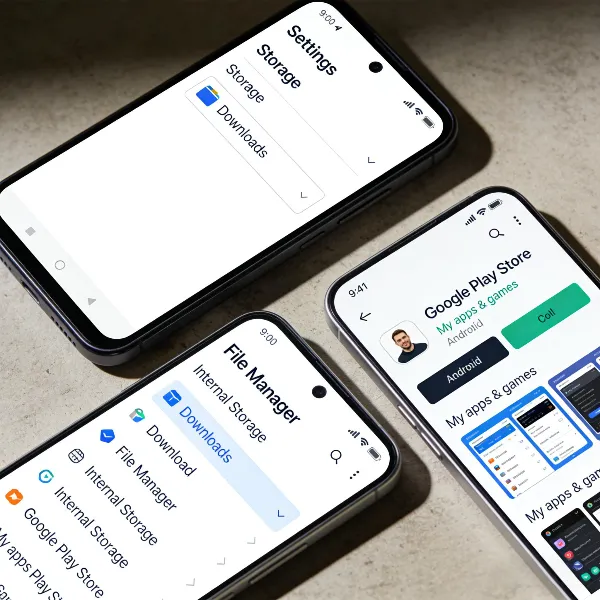
3. Check the File Manager or “My Files” App
Sometimes, photos can be hiding in unexpected places on your device. The File Manager or “My Files” app can help you find them.
- Open File Manager: Launch your file management app (such as “My Files”).
- Browse Storage: Navigate to the “DCIM” folder, which usually contains camera photos.
- Look for Hidden Files: If you can’t find your photos right away, try showing hidden files in the app settings.
- Recover Files: If you find your deleted photos, move them to a more accessible location.
This method can help if the photos weren’t permanently deleted or if they’re hiding in a different folder. However, if your photos were overwritten by new data, this method may not work.
4. Restore from Cloud Backups
If you’ve been backing up your photos to cloud services like Google Drive, OneDrive, or Dropbox, you may be able to restore them from there.
- Open Google Drive: Launch the Google Drive app.
- Find Backups: Navigate to the "Backups" section or search for your photos.
- Restore: If your photos are in the cloud backup, simply download or restore them to your device.
Cloud backups are a great way to protect your photos in case of accidental deletion. If you use another service, the process will be similar—just check your backup history for deleted images.
5. Use Data Recovery Apps for Deleted Photos
When all else fails, data recovery apps like DiskDigger or Tenorshare UltData can help you recover photos that were deleted even beyond 30 days.
- Install a Recovery App: Download an app like DiskDigger or Tenorshare UltData from the Play Store or their official website.
- Scan Your Device: Follow the app’s instructions to scan your device for deleted photos. Some apps require root access for deeper scans.
- Recover Photos: Once the scan is complete, choose the photos you want to restore and save them to your device.
These apps are helpful for more challenging recovery cases, but they often require some technical know-how, such as granting root access on your phone.

Important Tips for Successful Photo Recovery
If you want to maximize your chances of recovering deleted photos, here are some helpful tips on how to get deleted pictures back on Android:
- Act Quickly: The faster you attempt recovery, the better. Avoid using your device for new photos or apps after deletion, as this can overwrite the deleted files.
- Enable Cloud Backups: If you haven’t already, start backing up your photos regularly with services like Google Photos, OneDrive, or Dropbox. Set up automatic backups to avoid losing photos in the future.
- Check Your Device Storage: Sometimes, deleted photos can be stored in different folders. Explore your file manager or gallery app to see if they’re hiding somewhere.
- Use Reliable Recovery Apps: If you decide to use a data recovery app, make sure it’s a trusted, reputable tool. Stick to apps with good reviews to avoid problems down the road.
- Don’t Overwrite Data: If you’re attempting recovery, minimize using your phone until you’ve tried restoring your photos. Any new data may overwrite the space your deleted photos occupy.
By following these tips, you can improve your chances of a successful photo recovery.

Conclusion
How to recover deleted photos from Android? As we have seen, recovering deleted photos from your Android phone is possible, even if they’ve been deleted accidentally or due to a system issue. By checking the Google Photos Trash, using Samsung’s "Recently Deleted" feature, or restoring from cloud backups, you can easily retrieve most photos. For more stubborn cases, data recovery apps can provide a last-resort option.
For more data recovery tips, check out our guide on recovering deleted SMS in Android too!