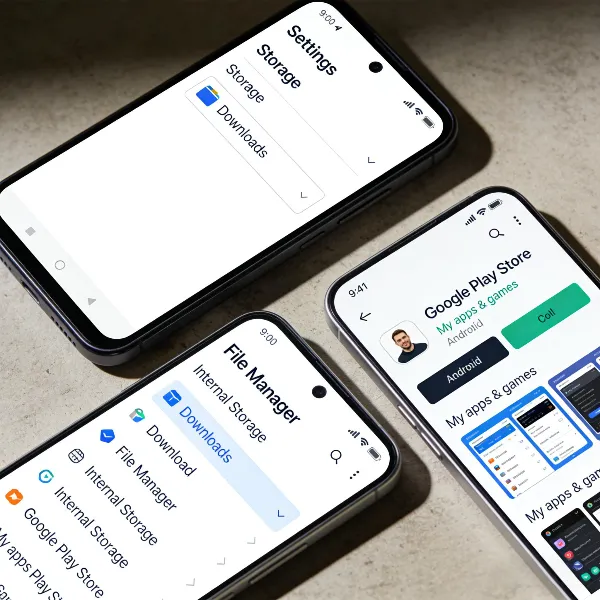
Printing directly from your Android phone has become a convenient way to handle documents, photos, and more without the need for a computer. Whether you need to print an important document for work or a family photo for display, learning how to print from Android is essential. In this guide, we'll walk you through the different ways to print from your Android device, ensuring you can easily connect your phone to a printer and get your materials printed in no time.
What Are the Best Methods to Print from an Android Phone?
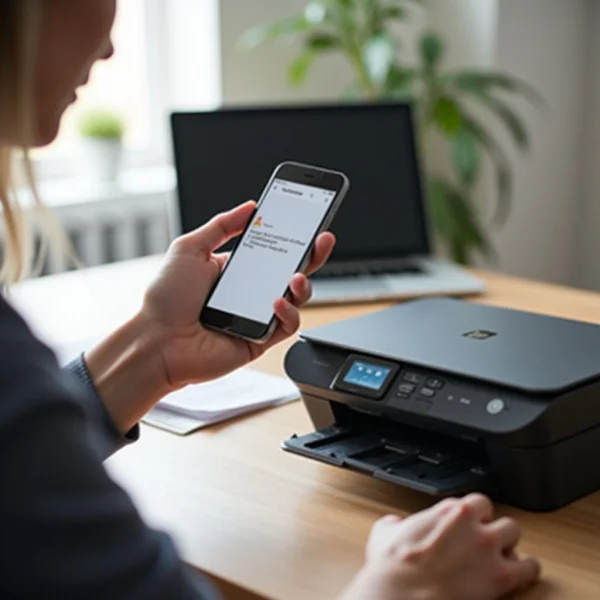
Printing from an Android device is easier than you might think. There are various ways to accomplish this, depending on your printer model and your preferences. Below, we will explore the most common methods to print from an Android phone, from using default services to connecting third-party apps and even USB cables for wired printing.
How to Print via Wi-Fi: Using Default Print Services
- Ensure your printer and Android phone are connected to the same Wi-Fi network.
- Open the document or photo you wish to print.
- Tap the "Share" icon or the three-dot menu (usually in the top right corner).
- From the list of options, select "Print."
- Choose your printer from the list.
- Tap the print icon to start printing.
How to Print Using Manufacturer-Specific Apps (HP, Canon, etc.)
Many printer manufacturers offer their own apps that make printing from your Android phone easier. Here's how to use them:
- Download and install the specific app for your printer, such as HP Print Service Plugin or Canon Print Service, from the Google Play Store.
- Ensure your printer is connected to the same Wi-Fi network as your Android device.
- Open the file or photo you want to print.
- Tap the "Share" icon or the three-dot menu, then select the "Print" option.
- Choose your printer from the list and adjust any necessary settings.
- Tap the print icon to send the document to your printer.
How to Print via Mopria Print Service for Unsupported Printers
If your printer doesn’t support a specific app, you can use Mopria Print Service. It supports a wide range of printers and can be installed directly from the Google Play Store.
- Go to the Google Play Store and search for Mopria Print Service.
- Download and install the app.
- Ensure both your Android phone and printer are connected to the same Wi-Fi network.
- Open the document or photo you want to print.
- Tap the "Share" icon or three-dot menu and select "Print."
- Choose your printer from the list and tap the print icon to begin.
How to Print via USB OTG Cable for Wired Printing
If your printer doesn’t support Wi-Fi or specific apps, you can use a USB OTG (On-The-Go) cable to directly connect your Android phone to the printer. Follow these steps:
- Purchase a USB OTG cable that matches your phone's charging port (e.g., USB-C or micro-USB).
- Connect the OTG cable to your phone and the printer via a standard USB cable.
- Download a third-party printing app such as NoPrint from the Google Play Store.
- Open the app and follow the on-screen instructions to connect to the printer.
- Select the file you want to print, and tap the print icon to start the process.
Troubleshooting Common Printing Issues
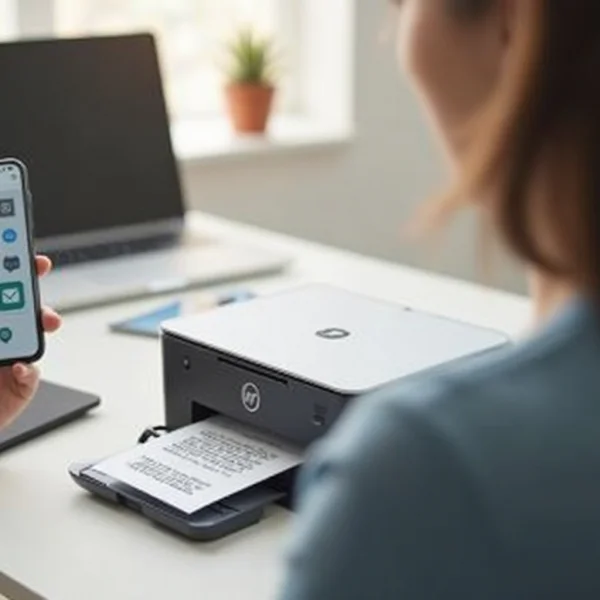
While printing from your Android device is generally straightforward, you might encounter some issues along the way. Below are some common problems and troubleshooting steps.
Why Can't I Find My Printer on Android?
If you can’t find your printer on your Android phone, follow these steps:
- Ensure that both your printer and Android phone are connected to the same Wi-Fi network.
- Restart both your printer and phone.
- If using a manufacturer app, check if it’s up to date.
- Ensure your printer is turned on and in a ready state.
- If using Mopria, check the app settings to ensure the printer is selected.
How to Fix Printing Failures on Your Android Phone?
If you experience printing failures, try the following solutions:
- Check your Wi-Fi connection to ensure it’s stable.
- Restart the printer and your Android phone.
- If using a third-party app, ensure it's updated to the latest version.
- For wired printing via USB OTG, make sure the OTG cable is securely connected.
- Ensure your printer has enough paper and ink or toner.
Advanced Tips for Optimizing Your Printing Experience
Once you’ve mastered the basics of printing from your Android phone, there are several advanced tips that can help you optimize your printing experience.
How to Print High-Quality Photos from Android Devices
To print high-quality photos from your Android phone, follow these steps:
- Use the best quality photo settings on your Android phone.
- Select a high-quality printer with good color accuracy.
- Ensure the paper type is suitable for photo printing (e.g., glossy photo paper).
- If possible, adjust the print resolution settings on the printer for better photo clarity.
Which Apps Provide Additional Features for Printing?
Some apps offer advanced features for printing from your Android phone. These include:
- Adobe Acrobat Reader: For high-quality PDF printing with customizable settings.
- PrintHand: Allows printing from Android devices to various printers with additional features like print queue management.
- Google Cloud Print: Though being phased out, this app still supports a wide range of printers and offers remote printing.
Conclusion
Printing from your Android phone is a quick and convenient way to handle your printing needs. Whether you’re using Wi-Fi, manufacturer-specific apps, or a USB OTG cable, there are several methods available. By following the steps outlined in this guide, you can easily connect your phone to a printer and start printing without hassle. Start printing today with the right tools and settings!