If you’ve ever wanted to share your Android phone’s content on a bigger screen, you’re in the right place! Whether you're streaming videos, displaying photos, or gaming, mirroring your Android device to a TV makes everything feel more immersive. In this guide, we’ll walk you through everything you need to know about how to mirror Android to TV. From wireless to wired methods, we'll also cover tips to improve performance and help troubleshoot common issues.
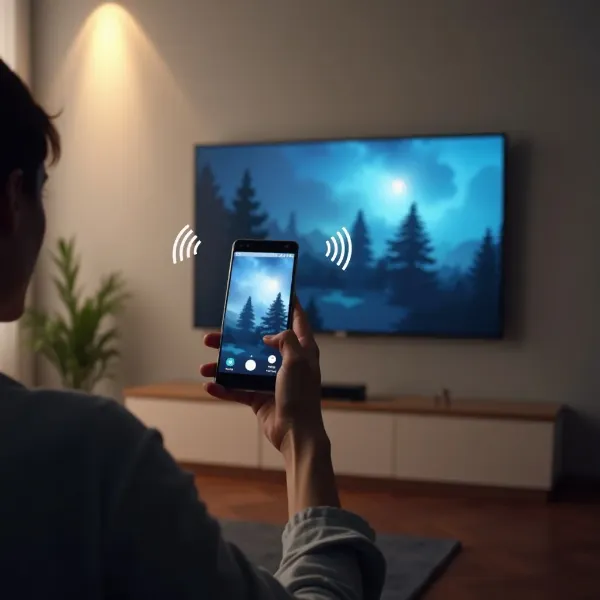
Why Mirror Your Android to TV?
Knowing how to screen share on Android opens up a world of possibilities. It’s a simple way to enjoy content on a larger screen, making it perfect for a range of activities:
- Watch Movies and Shows: Stream your favorite Netflix or YouTube videos on the big screen.
- Gaming: Play mobile games on a larger, more immersive display.
- Show Photos and Videos: Share your vacation photos with family or friends.
- Presentations: If you're giving a presentation, it’s easy to mirror your slides for a bigger audience.
What You Need Before You Start
Before jumping into the process of how to connect Android to TV, make sure you’ve got the essentials:
- A Compatible TV: Modern smart TVs usually come with built-in mirroring features.
- Wi-Fi Connection: For wireless methods, both your Android device and TV need to be on the same Wi-Fi network.
- Your Android Device: Ensure your phone or tablet is running Android 5.0 (Lollipop) or higher.
How to Mirror Android to TV (Wireless Methods)
Wireless mirroring is often the most convenient way to share your Android screen with a TV. Let's take a look at some popular wireless methods you can use.
Using Quick Settings (Built-In Android Feature)
Many Android devices have a built-in screen mirroring feature, which makes it super easy to cast your screen to a TV. Here’s how to use it:
- Open Quick Settings: Swipe down from the top of your Android screen to open the Quick Settings menu.
- Look for the Cast or Screen Mirroring Icon: You should see a “Cast” or “Screen Mirroring” icon (this may vary depending on your phone model).
- Select Your TV: Tap on your TV when it appears in the list of available devices.
- Start Mirroring: Once connected, your Android screen will appear on your TV. Now, you can watch movies, play games, or share photos!
Using the Google Home App (For Chromecast/Google TV)
If you have a Chromecast or Google TV, using the Google Home app to mirror your Android device is a great option. Here’s how to do it:
- Download the Google Home App: Install the Google Home app from the Google Play Store if you don’t already have it.
- Connect to the Same Wi-Fi: Make sure your Android phone and Chromecast/Google TV are connected to the same Wi-Fi network.
- Open Google Home: Launch the Google Home app and tap on your Chromecast or Google TV device.
- Cast Your Screen: Tap on “Cast screen/audio” and select your TV from the list of available devices.
- Start Mirroring: Your phone’s screen will now be mirrored on the TV. You can stream content, play games, or view photos in no time.
How to Mirror Android to TV (Wired Methods)
Sometimes, you may prefer a wired connection for better reliability. Here are some easy ways to mirror your Android device to your TV using cables.
Using HDMI or USB-C to HDMI Cable
One of the most reliable methods to connect your Android phone to your TV is by using an HDMI cable. Here’s how to do it:
- Get the Right Cable: You’ll need an HDMI cable and a USB-C to HDMI adapter (for newer Android phones).
- Connect the Cable: Plug one end of the HDMI cable into your TV and the other end into your Android phone using the adapter.
- Switch TV Input: Use your TV remote to select the HDMI input where your phone is connected.
- Start Mirroring: Your phone’s screen will now show up on your TV, and you can start streaming videos, gaming, or sharing photos.
Tips for Improving Screen Mirroring Performance
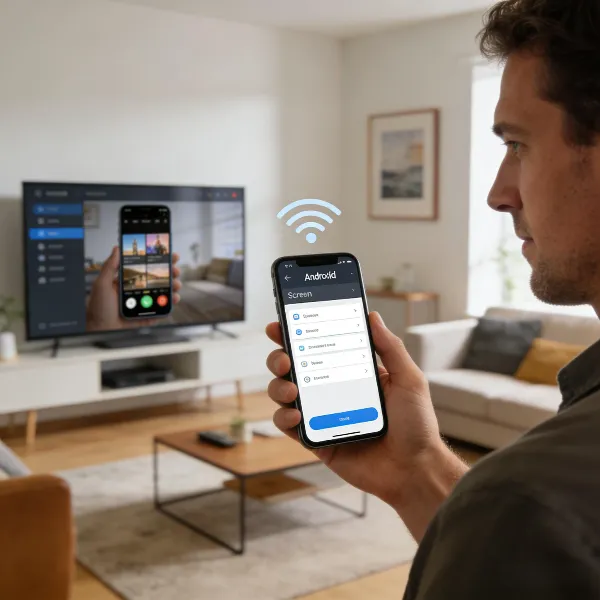
To get the best performance after you master how to screen mirror on Android, consider these tips:
- Minimize Interference: Keep other devices (microwaves, thick walls) away from your Wi-Fi router to avoid interference.
- Close Background Apps: Close unnecessary apps on your phone that might slow down your connection.
- Update Software: Make sure both your Android device and TV are updated with the latest software for better compatibility.
- Keep Your Phone Charged: Streaming can drain your battery, so keep your phone plugged in during use.
- Go Wired: For the most stable connection, consider using an HDMI cable instead of a wireless method.
- Adjust TV Settings: Some TVs offer features to improve mirroring, like optimizing screen resolution or reducing lag.
Conclusion: Start Mirroring Your Android Today
Now that you know how to mirror Android to TV, it’s time to give it a try! Whether you go with a wireless or wired method, you’ll enjoy watching movies, playing games, or showing off photos on the big screen. It’s a quick and easy way to enhance your media experience. Don’t wait—start mirroring today!