It’s frustrating when you can’t find a file you just downloaded on your Android device. Whether it’s a photo, document, or music track, Android stores downloaded files in different places.
"Where are my downloads on Android?" If you're wondering how to find downloads on Android, you’ve come to the right place. In this guide, we’ll walk you through the easiest ways to locate your downloads, whether through the Files app, your web browser, or the internal storage. Let’s get started!
Different Ways to Find Downloads on Android
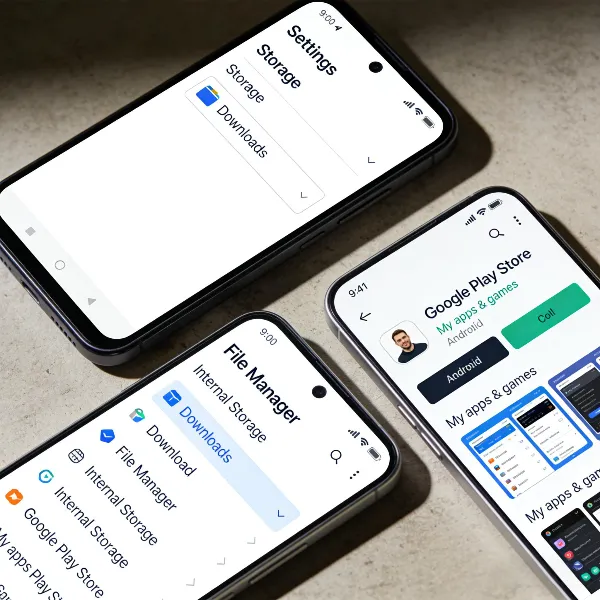
Finding your downloads on Android isn’t complicated once you know where to look. Here, we’ll go over how to view downloads on Android: using the Files app, checking your browser, and browsing your internal storage.
Method 1: Use the Files App to Find Downloads
The Files or My Files app on Android is your go-to tool for managing downloaded content. It’s simple, fast, and often the most reliable method to access all the files on your device. Here's how to do it:
- Open the Files App: On your home screen or in your apps list, look for the "Files" or "My Files" app.
- Go to Downloads: Once inside the app, look for the "Downloads" folder. It’s typically listed under "Categories" or directly in the main view.
- Browse Your Files: All the files you’ve downloaded should appear here. They’ll usually be sorted by date, making it easier to find recent downloads. You can tap a file to open it or share it directly from here.
The Files app is perfect for managing all kinds of files in one place, including documents, images, and videos.
Method 2: Use the Chrome Browser to Find Downloads
If you downloaded something through Chrome, you can quickly find it through the browser itself. Here’s how:
- Open Chrome: Launch the Chrome app on your phone.
- Tap the Menu Icon: Tap the three dots in the upper-right corner to open the menu.
- Go to Downloads: From the dropdown, select "Downloads" to view all the files you’ve saved through Chrome.
- Locate and Open Files: You’ll see a list of your downloads. Tap on any file to open it, or tap "Locate" to go directly to its location on your device.
This method is great for finding files downloaded directly from websites, but remember, other apps won’t appear here.
Method 3: Locate Downloads Through Internal Storage
If you’re still having trouble finding a file, try browsing your device’s internal storage. Android’s download directory can be tricky, but here’s how you can search:
- Go to Settings: Open your device’s "Settings" app.
- Find Storage: Scroll down and tap on "Storage" or "Internal Storage."
- Look for Downloads Folder: In the "Documents" or "Other Files" section, you should find a "Downloads" folder. Tap it to open.
- Browse Your Files: Inside the Downloads folder, all your files will be organized by date. You can also search by file type.
This method gives you a deeper look into your phone’s file system and helps you track down any hidden downloads.
How to Access Downloads of Specific Apps
Some apps, like Netflix, Spotify, and YouTube, store downloads in their own folders. These files are often not accessible through the general Downloads folder. Let’s go over where to find these app-specific downloads.
Netflix and Spotify Downloads: Where to Find Them
Many popular streaming apps save downloaded content in special locations that aren’t visible in the general file manager. Here’s where to find them:
- Netflix Downloads:
- Open the Netflix app and go to "Downloads."
- From here, you can view, delete, or manage the content you’ve downloaded for offline viewing.
- Spotify Downloads:
- Open Spotify and go to the "Your Library" section.
- Tap on "Downloads" to access all the music and playlists you've saved offline.
Note that Netflix and Spotify downloads are often encrypted and can only be accessed within their respective apps.
Downloaded Files in Other Popular Apps
Other apps, such as YouTube, TikTok, and Amazon Prime Video, also store offline content in their own directories. Here’s how to find them:
- YouTube Downloads:
- Open the YouTube app and tap "Library" at the bottom.
- Go to "Downloads" to see all offline videos.
- TikTok Downloads:
- Open TikTok and tap on your profile.
- Go to "Favorites" and tap on "Downloaded" to find your saved clips.
For these apps, the downloads are often locked within the app and cannot be accessed via file explorers or other methods.
Troubleshooting: What to Do if You Can't Find Your Downloads
If your downloads aren’t showing up, there are several things that could be going wrong. Here are some common issues and how to fix them:
- App-Specific Folders:
- Many apps save files in their own folders rather than in the default Downloads folder.
- Solution: Check the specific app (like Netflix or Spotify) to see if it has its own downloads section.
- Incomplete Downloads:
- Sometimes, files won’t show up if the download didn’t finish properly.
- Solution: Ensure you have a stable internet connection and try downloading the file again.
- Full Storage:
- If your storage is almost full, some files may not download or show up properly.
- Solution: Go to "Settings" → "Storage" and free up some space to allow new downloads.
- Permissions Issues:
- Some apps might not have the right permissions to save files to your storage.
- Solution: Go to "Settings" → "Apps" → [App Name] → "Permissions" and ensure storage access is enabled.
- Corrupted or Hidden Files:
- Files may sometimes become corrupted or hidden due to system glitches.
- Solution: Restart your phone, clear the app cache, or try accessing your files using a third-party file manager app.
With these fixes, you should be able to find your downloads more easily.
Conclusion
Knowing how to find downloads on Android is essential for keeping your files organized and accessible. Whether you're using the Files app, your browser, or browsing through internal storage, the steps above should help you locate your downloads quickly. If specific apps are storing files in their own folders, don't forget to check those too. And if you run into any issues, troubleshooting tips can help resolve common download problems.
Now that you know how to manage your downloads, you’ll never have to worry about losing track of files again! Also, check out our guide on where is clipboard on Android too!