If you’ve ever wondered how much time you spend on your Android phone, you’re not alone. Many of us reach for our phones without realizing how much time goes by. The good news is, Android has a built-in feature called Digital Wellbeing that lets you see how much time you’re actually spending on your device.
In this guide, we’ll show you how to check screen time on Android, break down your usage, and give you tips to better manage your time. Whether you’re trying to curb phone addiction or just curious about your habits, Digital Wellbeing is here to help.

What Is Android Screen Time?
Android Screen Time is a feature integrated into the operating system via Digital Wellbeing. It tracks your phone usage, giving you insight into how much time you spend on apps, checking notifications, and even how often you unlock your phone.
By checking your screen time, you can better understand your habits and make informed decisions about your phone usage. The more you know, the easier it becomes to adjust your screen time, improve productivity, and reduce distractions.
How to Check Screen Time on Android (Quick Steps)
Looking to quickly check how much time you’re spending on your Android phone? Here’s how to do it in just a few simple steps.
Open Digital Wellbeing on Android
- Go to Settings: Start by swiping down from the top of your screen to open the notification shade. Then tap the gear icon to go into your Settings.
- Find Digital Wellbeing: Scroll down until you see Digital Wellbeing & Parental Controls. Tap on it to open the screen time settings.
- Launch Digital Wellbeing: Once you’re inside the Digital Wellbeing section, you’ll immediately see an overview of your daily usage.
Check Today’s Total Screen Time
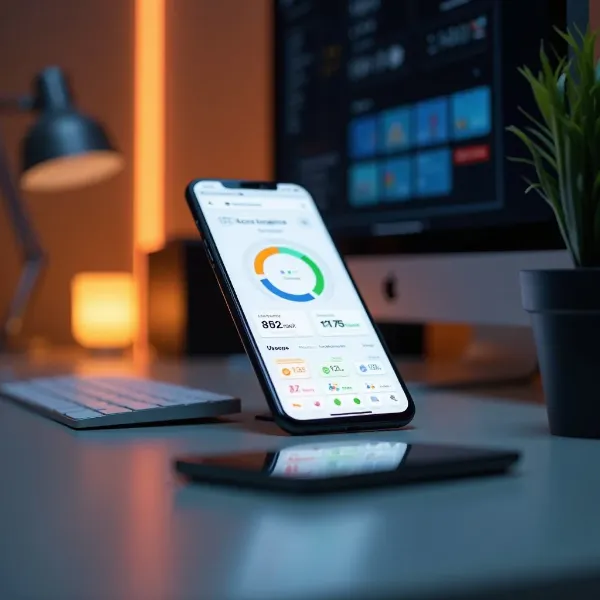
- View Today’s Stats: The main screen will show your total screen time for today, along with a breakdown of how much time you’ve spent on each app.
- Tap on the Graph: For a more detailed look, tap on the graph to see a breakdown of your app usage.
This quick view helps you get an idea of where most of your time is going and how often you’re using your phone.
Understanding Your Android Screen Time Data
Now that you know how to check screen time on Android, let’s dive deeper into what all that data really means. Understanding these numbers is key to using the information effectively.
What Counts Toward Screen Time?
Screen time counts all the time you actively use your phone, including:
- App usage: The time you spend in apps like social media, gaming, or email.
- Phone calls: Time spent on voice or video calls.
- Web browsing: Time spent surfing the web on your browser or other browsing apps.
- Media consumption: Time spent watching videos or listening to music.
However, background tasks like syncing apps or when your phone is locked don’t count toward your total screen time.
App-by-App Usage Explained
One of the coolest features of Digital Wellbeing is the app-by-app breakdown. You can see how much time you’re spending on individual apps, like:
- Social media apps (Facebook, Instagram, etc.)
- Productivity apps (like email or note-taking apps)
- Games (if you enjoy mobile gaming)
This breakdown makes it easy to see which apps are taking up most of your time, so you can make adjustments if needed.
Notifications, Unlocks, and Pickups
Another useful feature of Digital Wellbeing is tracking how often you interact with your phone. This includes:
- Unlocks: How many times you’ve unlocked your phone.
- Notifications: How many notifications you’ve received from various apps.
- Pickups: The number of times you’ve picked up your phone, even if you didn’t unlock it.
These metrics give you insight into how often you’re distracted or drawn into your phone. It’s easy to see if you’re unlocking your phone out of habit or if certain apps are causing constant interruptions.
How to View Past Screen Time Data on Android
If you want to go beyond today’s usage and track your phone habits over time, Android lets you view past screen time data. Here’s how.
Accessing Data from Previous Days
- Swipe to See Past Data: In the Digital Wellbeing section, you’ll see a graph that displays your current screen time. Swipe left to see your usage data for previous days.
- Compare Your Habits: This allows you to compare how much time you spent on your phone each day, helping you spot trends or changes in your phone usage.
Analyzing Your Long-Term Usage Trends
For a deeper look at your long-term phone usage, tap the Dashboard option within Digital Wellbeing. This will show your screen time data for the past week or month, so you can track trends over time.
By analyzing long-term data, you can get a clearer picture of your phone habits and make adjustments for a healthier balance.
Additional Tips for Managing Screen Time on Android
Checking your screen time is one thing, but knowing how to manage it is where the real change happens. Here are a few tips to help you take control of your phone usage.
Setting Usage Limits for Apps
One of the easiest ways to manage your screen time is by setting daily app usage limits. Here’s how you can do it:
- Open the Dashboard in Digital Wellbeing.
- Select the app you want to limit.
- Set a daily limit on how much time you want to spend in that app.
Once you reach the limit, the app will be paused for the rest of the day. This is perfect for curbing excessive use of apps that tend to drain your time.
Reducing Screen Time with Focus Mode
If you need to focus on something important and avoid distractions, Focus Mode can help. It temporarily pauses apps that you find distracting. Here’s how to use it:
- Open Digital Wellbeing.
- Tap on Focus Mode and select the apps you want to pause (e.g., social media or games).
- Turn on Focus Mode when you need to concentrate.
This is especially useful during work or study sessions, helping you stay on task without interruptions.
Searching for Digital Wellbeing Settings Faster
If you find yourself frequently checking your screen time, here’s a quick tip: use the search bar in your Settings app. Just type in "Digital Wellbeing" to instantly access the settings without having to scroll through menus.
This small shortcut can save you time and make it easier to monitor your phone habits on the go.
Conclusion
Now that you know how to check screen time on Android, you have the tools to make more informed decisions about your phone usage. Whether you want to cut down on distractions, improve your productivity, or simply understand how much time you're spending on your device, Digital Wellbeing has you covered.
Start checking your screen time today and take control of your phone habits. With a little awareness and some simple adjustments, you can use your phone more mindfully and make the most of your time.