If you've ever wondered how to change your ringtone on Android, you're in the right place! Customizing your ringtone allows you to personalize your phone and make it stand out. Whether you want to change your default ringtone, set a custom sound from your music library, or assign a unique ringtone to a specific contact, this guide will walk you through each step. Let’s dive into how to make your Android experience even more personalized.
 How Do You Change Your Default Ringtone on Android?" />How Do You Change Your Default Ringtone on Android?" />How Do You Change Your Default Ringtone on Android?
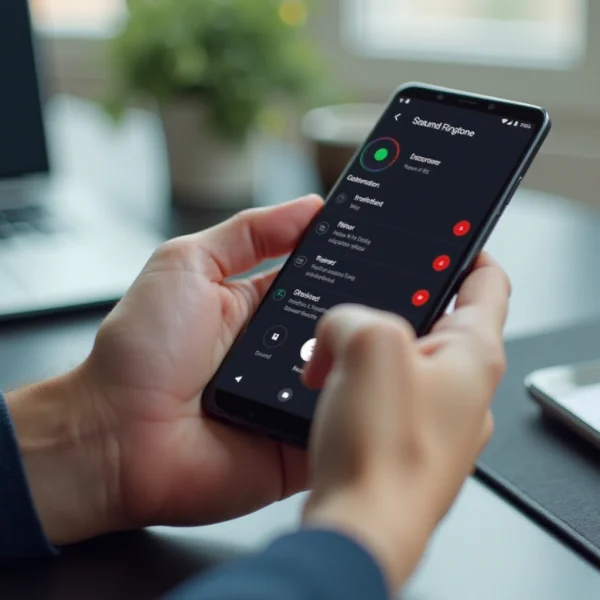
Changing your default ringtone on Android is a simple process that allows you to switch up the sound that plays when you receive calls. This can be done quickly through the Settings app on your phone. No matter the Android version or manufacturer, the basic steps are similar.
What Are the Steps to Change the Default Ringtone on Android?
Follow these easy steps to change your default ringtone:
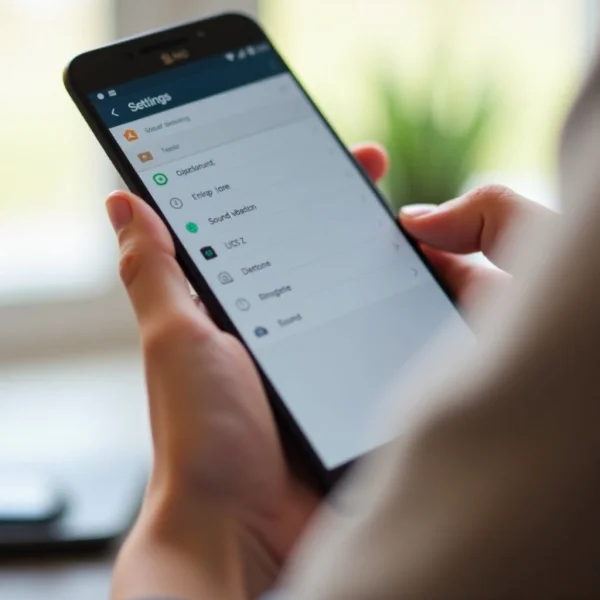
- Open the Settings app on your Android phone.
- Scroll down and tap on Sound & vibration.
- Tap on Phone ringtone or Ringtone.
- Browse the list of available ringtones and tap on one to preview it.
- Once you find the sound you like, select it and tap Save or OK.
That's it! Your default ringtone is now set.
 How Do You Change Your Default Ringtone on Android?" />How Do You Change Your Default Ringtone on Android?"/>
How to Add a Custom Ringtone on Android Using MP3 or Other Audio Files?
Personalizing your ringtone with a custom audio file, such as an MP3 or M4A, is a great way to make your phone truly yours. Whether it's your favorite song or a sound effect, setting a custom ringtone adds a personal touch. Follow these steps to set a custom ringtone from your music library or other audio files:
- Ensure the audio file is saved on your device, preferably in the Ringtones folder.
- Open the Settings app and navigate to Sound & vibration.
- Tap Phone ringtone or Ringtone.
- Tap the + icon or My Sounds.
- Choose your custom MP3 or audio file from the list of available sounds.
- Tap OK or Save to confirm your selection.
Now your custom ringtone is set, and you'll hear your unique sound whenever you receive a call.
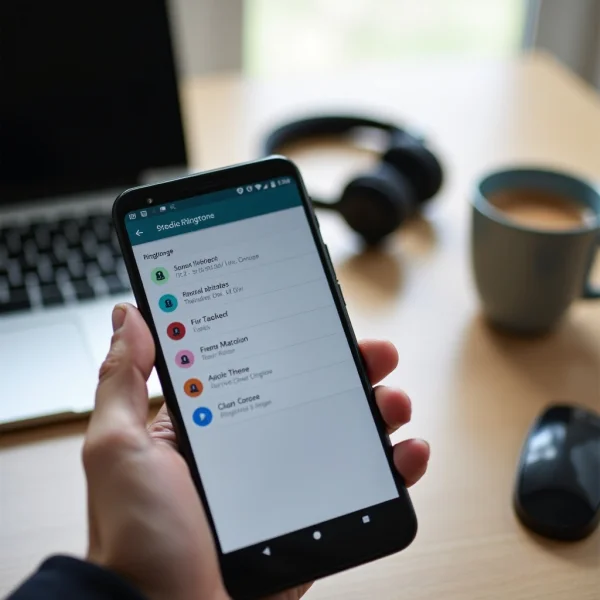
How to Set a Custom Ringtone for Specific Contacts on Android?
You can also assign a unique ringtone to specific contacts, so you’ll instantly know who’s calling. Here’s how to do it:
- Open the Contacts app on your Android device.
- Tap on the contact you want to assign a custom ringtone to.
- Tap on the menu (three dots) or select Edit.
- Choose Set ringtone or Change ringtone.
- Select the desired ringtone and tap Save.
Now, every time that contact calls, you'll hear the unique ringtone you've set for them.
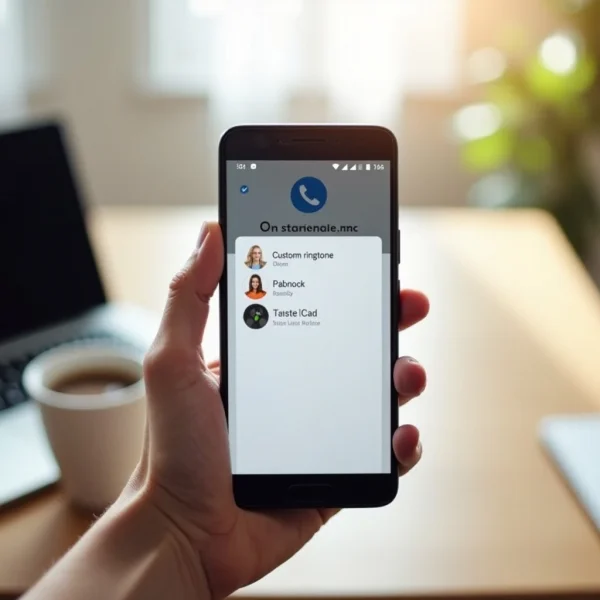
How to Use Third-Party Apps to Set Custom Ringtones on Android?
If you're looking for more customization options, third-party apps offer a variety of ringtones, sound effects, and the ability to create your own. Apps like Zedge and Ringtone Maker can help you download, create, and set custom ringtones with ease.
Which Third-Party Apps Can Help You Set a Custom Ringtone?
Here are some popular apps that can help you set custom ringtones on Android:
- Zedge: A comprehensive app for wallpapers, ringtones, and notification sounds. It allows you to download free ringtones and set them directly.
- Ringtone Maker: This app allows you to create your own ringtones from MP3 or other audio files. You can crop the song to your desired length and set it as your ringtone.
- Ringtone Setter: A simple app that lets you assign custom ringtones and notifications easily.
These apps provide more customization options than the built-in Android settings, making it easier to create the perfect ringtone.
Conclusion
In conclusion, changing the ringtone on Android is a quick and easy process that can help personalize your device. Whether you want to change the default ringtone, use a custom audio file, or assign unique ringtones to specific contacts, Android offers several ways to do so. You can even explore third-party apps to further expand your options. Now that you know how to change your ringtone on Android, give it a try and enjoy a more personalized mobile experience!
FAQs About Changing Ringtones on Android
How do I set custom ringtones on Android?
To set a custom ringtone on Android, download the audio file (MP3, M4A, etc.) to your phone. Then, go to Settings > Sound & vibration > Phone ringtone, and tap on the + icon or My Sounds to select your custom ringtone.
Why is my custom ringtone not appearing on my Android?
If your custom ringtone isn’t appearing, ensure that the audio file is saved in the correct folder (usually the Ringtones folder). You may also need to restart your phone or re-download the file if it was not correctly transferred.
Can I use a song as a ringtone on my Android device?
Yes, you can use a song as your ringtone. Simply download the song to your phone, then follow the steps to set a custom ringtone by selecting the song file through the Phone ringtone settings. You can use any audio format, such as MP3 or M4A.