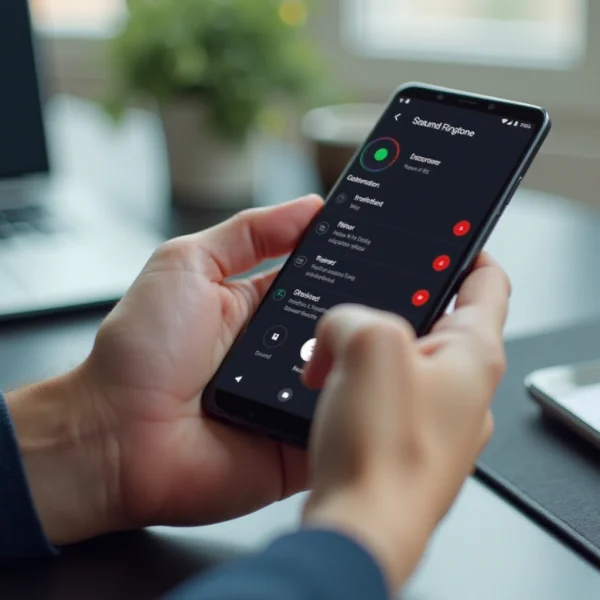
If you're tired of receiving unwanted calls and messages, learning how to block a number on Android is essential. Whether it's a spam caller, an annoying telemarketer, or someone you simply don't want to hear from, blocking numbers on Android is quick and easy. This guide will cover various methods for blocking numbers, including blocking calls from your call history, through settings, and even filtering out unknown or private numbers. Keep reading to find a comprehensive solution for managing your call privacy.
What Does Blocking a Number on Android Do?
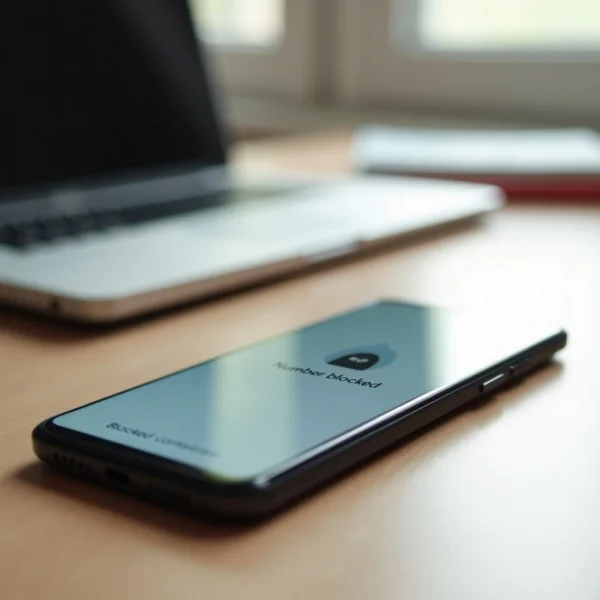
Blocking a number on Android prevents that specific phone number from calling, texting, or leaving voicemails. When you block someone, calls and messages from that number are automatically routed to voicemail. You won’t be notified of these attempts, and the blocked caller won't know they’ve been blocked unless they call repeatedly.
Blocked callers might hear a busy signal or be sent directly to voicemail, but their messages won’t appear on your phone. This method offers a seamless and hassle-free way to prevent unwanted communication while maintaining privacy.
How to Block a Number on Android from Call History
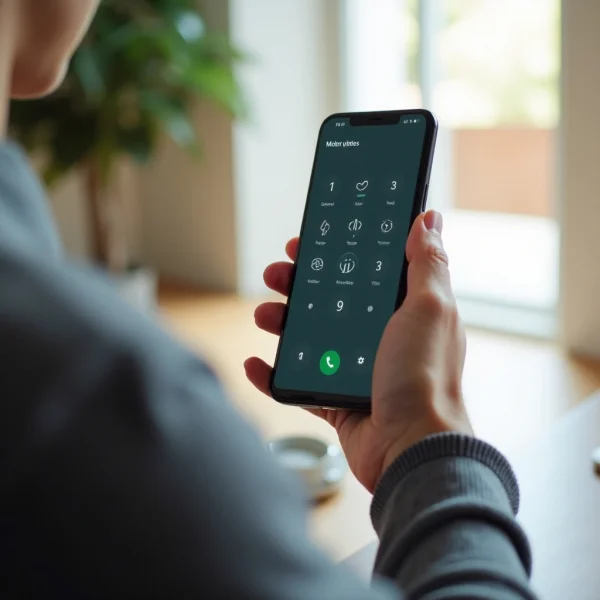
If you want to block a number you've recently received a call from, the easiest method is through your call history. This option is quick and doesn't require searching through your settings.
- Open the Phone app on your Android device.
- Navigate to the "Recents" tab to view your call history.
- Locate the number you want to block.
- Long press the number (or tap the "i" icon next to it).
- Select "Block/report spam."
- Confirm by tapping "Block" or "OK."
Following these steps will block the number immediately, preventing further calls or messages from that contact.
How to Block Unknown or Private Numbers on Android
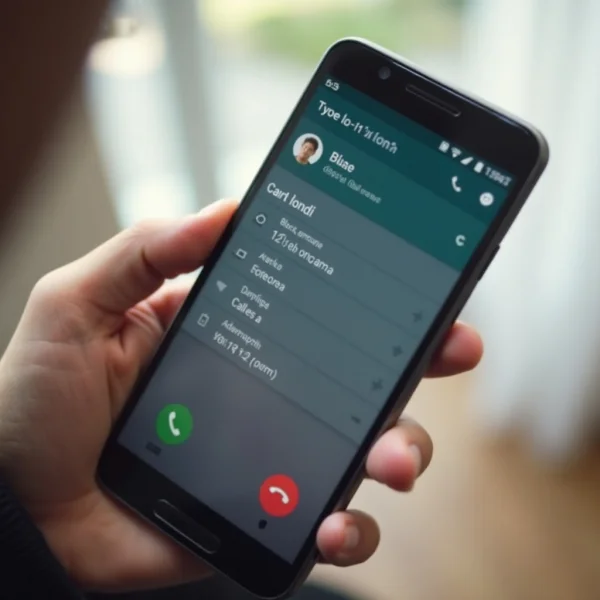
Dealing with spam calls or private numbers? Android allows you to block these types of calls directly through your settings, preventing any unidentified numbers from bothering you.
To block unknown or private numbers, follow these steps:
- Open the Phone app and tap the three dots in the upper-right corner.
- Select "Settings."
- Under "Blocked numbers," toggle the option for "Unknown" or "Private."
- This will block any calls from numbers that are not visible to your phone.
The exact steps may vary depending on your Android device, such as Google Pixel or Samsung, but the option to block unidentified calls is available within the phone settings.
How to Block Numbers from Settings on Android
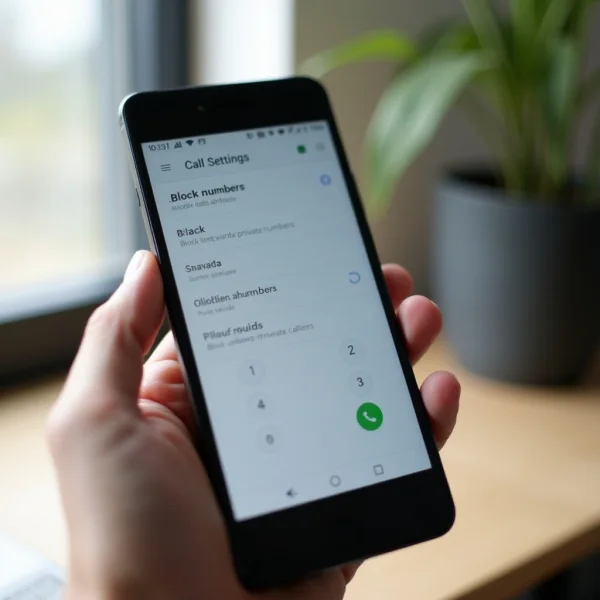
Blocking a number manually through settings gives you more control and customization options. Here's how you can block a number from your settings:
- Open the Phone app on your Android device.
- Tap the three dots in the upper-right corner and go to "Settings."
- Select "Blocked numbers."
- Tap "Add a number."
- Enter the number you wish to block and tap "Block."
This method is ideal for blocking numbers not found in your recent call history. It also allows you to manage your entire blocked list from one convenient screen.
How to Unblock a Number on Android
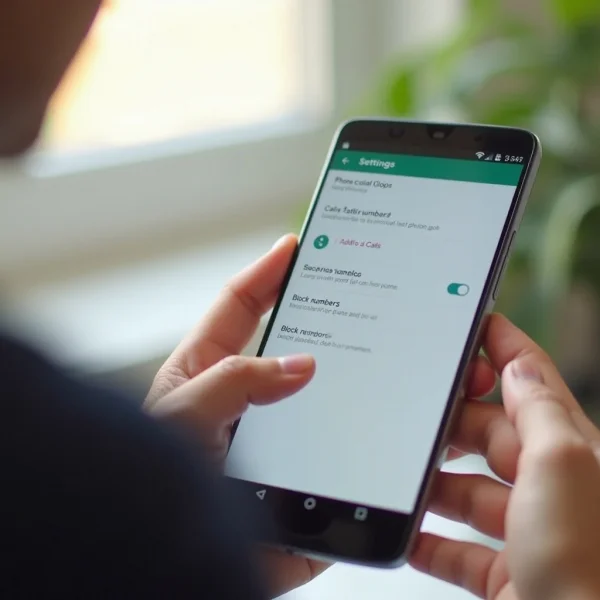
If you ever want to restore communication with someone you previously blocked, unblocking a number is just as easy as blocking it.
- Open the Phone app on your Android device.
- Tap the three dots in the upper-right corner and select "Settings."
- Go to "Blocked numbers."
- Find the number you want to unblock and tap the "X" or minus sign (-) next to it.
- Confirm the action to unblock the number.
Once unblocked, the previously restricted number can call, text, and leave voicemails again as usual.
Key Considerations When Blocking Numbers on Android
While blocking a number is an effective way to stop unwanted communication, it's important to understand some key considerations:
- Voicemail: Blocked callers may still leave voicemails, depending on your phone model.
- Caller Experience: Blocked callers typically won’t know they’ve been blocked. They may hear a busy signal or be sent directly to voicemail.
- App Interference: Some third-party apps might interfere with your phone’s default blocking system. Make sure any spam-filtering apps don’t conflict with your settings.
- Carrier Limitations: Your carrier’s blocking features may differ. Some may offer additional services to block calls through their network.
Understanding these aspects ensures you can manage your call blocking more effectively.
Conclusion
Knowing how to block a number on Android is crucial for protecting your privacy and avoiding unwanted calls and messages. Whether you're blocking a number from your call history, settings, or filtering out unknown callers, Android makes it easy to take control of who can contact you. If you ever need to reverse the process, unblocking is just as simple. Follow this guide to create a peaceful and hassle-free phone experience.