Getting locked out of your Android phone can be frustrating, but don’t worry—there are several ways to regain access. Whether you’ve forgotten your PIN, pattern, or password, this guide will walk you through the best methods for unlocking your device. Keep reading to find out how do you unlock an Android phone in a safe and efficient way, and get back to using your phone.

Is It Possible to Unlock a Locked Android Phone?
Yes, it is possible, but the method depends on how much data you’re willing to lose. If you’ve forgotten your PIN or pattern, the most reliable route is a Factory Reset, which wipes the device clean.
For modern phones, you can use Google’s "Find My Device" to remotely erase it. If you’re lucky enough to have an older Android (4.4 or below), the "Forgot Pattern" button might still work. Otherwise, professional recovery software or a recovery mode boot are your best bets.
How to Unlock an Android Phone
How do I unlock my Android phone? Here’s a breakdown of the most common and effective methods for unlocking an Android phone. Each method varies in terms of complexity, data loss risk, and time required.
1. Older Android Versions: Using the Forgot Pattern Feature
Older Android phones with pattern locks can sometimes be unlocked by using the “Forgot Pattern” feature. This is a handy option for devices running older software versions.
Step-by-Step Process:
- After entering the wrong pattern several times, you should see the “Forgot Pattern” option appear on the screen.
- Tap on it, and you’ll be prompted to log in using your Google account credentials.
- Follow the on-screen steps to reset your unlock pattern.
- Once the pattern is reset, you can use your new pattern to unlock your device.
2. Smart Lock & Biometric Unlock Features
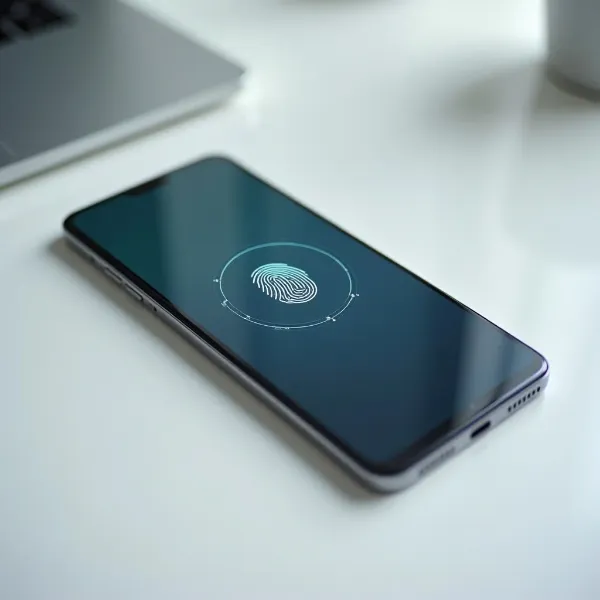
If you’ve previously set up Smart Lock or biometric unlock options (like fingerprint or face recognition), you may be able to unlock your device without needing a passcode. These features are a great option for those who want a fast and secure way to unlock their phone.
Steps for Using Smart Lock and Biometrics:
- With Smart Lock enabled, your phone might automatically unlock when it detects a trusted device (like your Bluetooth speaker) or your location (e.g., home).
- If you’ve set up fingerprint or face unlock, simply place your finger on the sensor or look at your phone to unlock it using facial recognition.
- Once recognized, your phone will unlock and you can start using it right away.
3. Use Google's Find My Device
If you’ve linked your Android phone to a Google account, the Find My Device feature is one of the best ways to unlock your device.
Step-by-Step Process:
- Go to the Find My Device website on a computer or another device.
- Sign in with the Google account that’s linked to your locked phone.
- Select the device you want to unlock.
- Click the "Lock" option to set a new PIN for your phone.
- Enter a new PIN and confirm it.
- Use the new PIN to unlock your phone.
4. Factory Reset via Recovery Mode (Risk of Data Loss)
A factory reset is a more drastic measure and should be considered a last resort. It will erase all data on your phone, including apps, photos, and contacts, so it’s essential to back up your information if you can.
Step-by-Step Process:
- Power off your phone completely.
- Press and hold the volume up button and the power button at the same time (this key combination may vary by device, so check your manual).
- Once the recovery menu appears, use the volume buttons to navigate to “Wipe data/factory reset.”
- Confirm the factory reset by selecting “Yes.”
- After the reset, select “Reboot system now” to restart your phone.
5. Unlocking Through Third-Party Tools
If you want to avoid data loss, third-party unlocking tools can help. These tools are designed to unlock Android devices without the risk of losing personal files. Here are the general steps as reference.
Step-by-Step Process:
- Download and install a trusted third-party unlocking tool on your computer.
- Launch the software and select the “Unlock” option.
- Connect your Android phone to your computer via USB cable.
- Follow the on-screen instructions. This may involve selecting your phone model and the type of lock you need to bypass.
- The tool will remove the lock, and your phone will be unlocked without losing data.

Tips for Preventing Locking Your Android Device in the Future
Now that you know how to unlock an Android phone, here are some practical tips to avoid getting locked out in the future:
- Memorable Screen Lock: Choose a PIN you can recall under pressure, skip obvious dates, and practice entry occasionally. This builds familiarity and reduces mistakes when unlocking quickly or in stressful situations.
- Biometric Backup: Enable fingerprint or face unlock as secondary access. Register multiple fingers, clean sensors often, and test regularly so biometric failure doesn’t leave you blocked at the lock screen.
- Account Recovery Setup: Keep Google recovery email and phone number updated. Store backup codes securely offline, ensuring account verification stays possible if passwords are forgotten or login attempts fail.
- Find My Device Access: Confirm Find My Device is active, location services are on, and your phone appears online. This remote tool can help reset locks or secure data if access is lost.
- System and App Hygiene: Install Android updates promptly, remove risky lock-screen apps, and review device admin permissions. Clean software setups lower the chance of crashes or lock-related errors.
Conclusion
Getting locked out of your Android phone is never fun, but now you know how do you unlock an Android phone using various methods. Whether it's using Google’s Find My Device, performing a factory reset, or using third-party tools, there are ways to regain access to your device. Make sure to regularly back up your data and set up backup unlock options to prevent future lockouts. With these solutions, you can confidently unlock your phone and get back to using it.